KDP interior template, done for you
A KDP interior template sets trim, margins and gutter for a print book. Instead of filling one in by hand, upload your manuscript here. The tool lays out the pages with KDP margins, chapter openings, running heads, page numbers and a table of contents, and returns a print PDF.
By The Spinewrap team (Product and testing). Last updated .
How to format a KDP interior, step by step
- Pick the trim size you chose on KDP.
- Type the title and the author name.
- Upload a .docx, .md or .txt file, or paste the text.
- Choose the font, the text size and the options.
- Press Format, check the preview and download the PDF.
The calculator and the templates are free. Print-ready covers and interiors come with 3 free proof runs a day; see the pricing page for clean files, or read how we check the KDP math.
What a KDP interior template does
A Word KDP interior template sets the page size and the margins, but you still have to style every chapter. So headings drift, page numbers restart, and blank pages go missing. Many first books get flagged for text that sits too close to the edge.
This tool works the other way. You bring the text, and it builds the pages. First, it sets the page to your trim. Then it sets the inside margin from your page count, as KDP asks. Finally, it places every line, so nothing crosses the margin.
What goes into the interior PDF
First, the PDF starts with a title page and a copyright page. Next comes an optional table of contents with real page numbers. After that, each chapter opens on a new page, on the right hand side if you tick that option.
Also, every page gets a running head: the book title on the left and the chapter title on the right. Meanwhile, page numbers sit at the bottom. In addition, the tool justifies the text and adds a scene break wherever your file has one.
Tested with a real book
We ran The Wonderful Wizard of Oz through the tool, using the public domain text from Project Gutenberg. It has about 39,000 words, an introduction and 24 chapters. On a 6 x 9 page at 11 pt, it came out to 134 pages in under two seconds.
Then we used that page count in the cover calculator. As a result, the cover and the interior match, which is the step most people miss.
Interior settings the tool applies
| Setting | Value |
|---|---|
| Inside margin | KDP gutter for your page count plus 0.125 in |
| Outside margin | 0.6 in |
| Top and bottom | 0.75 in |
| Body fonts | Cardo or Gentium Book, 10 to 13 pt |
| Chapter start | New page, right hand side optional |
KDP interior template tested with a real book
We built this file with the same code the tool on this page uses, from the public domain text of The Wonderful Wizard of Oz. So the image and the numbers below come from that run, not from a mockup.
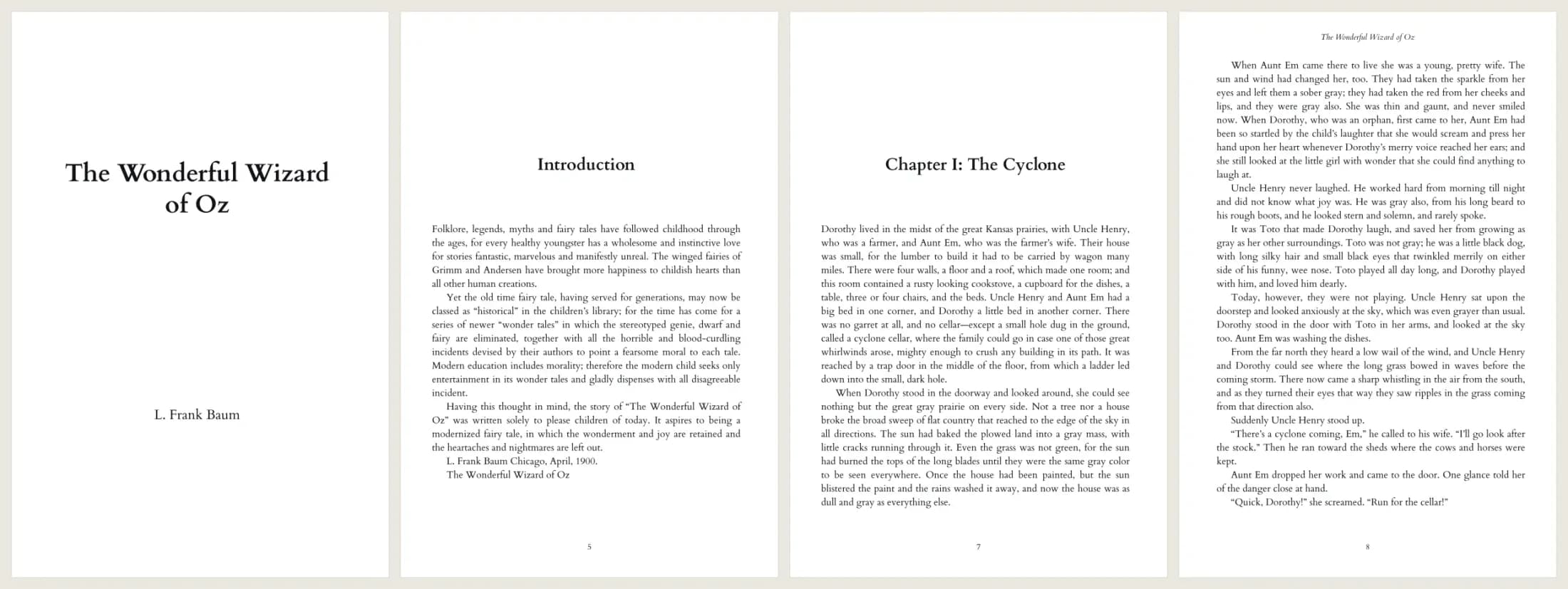
- Test input
- The Wonderful Wizard of Oz, plain text from Project Gutenberg (207 KB)
- Output
- 6 x 9 print interior PDF, Cardo 11 pt
- Pages
- 134
- Words
- 39,297
- Chapters
- 25
- Inside margin
- 0.5 in
- PDF size
- 339 KB
- PDF size
- 339 KB
- Build time
- 801 ms
How we check files: a script compares every size with the KDP formula, and we open each PDF to check fonts, margins and the spine. More on the about page.
KDP interior template FAQ
Do I need a KDP interior template in Word?
No. Upload your text here and the tool builds the pages for you, with KDP margins already set.
Which files can I upload?
You can upload a Word .docx file, a Markdown .md file or a plain .txt file. You can also paste the text.
Does it keep italic and bold?
Yes. Italic and bold from Word or Markdown also carry over to the PDF.
Can it do images or tables?
Not yet. The tool suits text books such as novels, memoirs and essays. Books with many images need a layout app.