KDP cover creator for print-ready PDFs
This KDP cover creator builds a full wrap paperback cover from your text and one image. It sizes the file for your trim, page count and paper, then places the title, author, spine text and blurb in the safe areas. You get a PDF you can upload to KDP as is.
By The Spinewrap team (Product and testing). Last updated .
How to create a KDP cover, step by step
- Pick the trim size, page count and paper.
- Type the title, subtitle, author name and back cover text.
- Choose the colors and the book font.
- Add a front image if you have one, at 300 DPI if you can.
- Press Build, check the preview, and download the PDF.
The calculator and the templates are free. Print-ready covers and interiors come with 3 free proof runs a day; see the pricing page for clean files, or read how we check the KDP math.
What the KDP cover creator does for you
First, it works out the full cover size with bleed and spine. Then it fits the title to the front panel, so long titles shrink and wrap instead of running off the edge. Next, it adds the author name at the bottom and the blurb on the back.
After that, it turns the title and author sideways on the spine, if the book has 79 pages or more. Finally, it leaves the barcode box empty. As a result, the file passes the KDP size check on the first try.
Using your own image
First, you can add one JPG, PNG or WebP image for the front. Then the KDP cover creator crops it to the front panel plus bleed and tells you the print resolution. If the image falls below 300 DPI at that size, you will see a warning.
Also, if your image already shows the title, tick the box that says so. Then the tool keeps the front clean and only adds the spine and back text. In contrast, without that box, it adds a soft band behind the title so the text stays readable.
Free proof first, clean file later
Every run shows a preview first. In addition, the free runs each day give a proof PDF with a small PROOF mark across it. So you can check the layout, the fonts and the spine before you spend anything.
When you are happy, one credit gives the clean file. In addition, the template and the size check stay free, so you can test a new page count at any time before you pay.
What the KDP cover creator places on the file
| Part | Where | Rule |
|---|---|---|
| Title and subtitle | Front panel | Inside the 0.25 in safe area, auto-fit |
| Author | Front panel, bottom | Inside the safe area |
| Spine text | Center of the spine | Only at 79 pages or more |
| Blurb | Back panel | Above the barcode box |
| Barcode box | Back panel, lower right | Left empty for KDP |
KDP cover creator tested with a real book
We built this file with the same code the tool on this page uses, from the public domain text of The Wonderful Wizard of Oz. So the image and the numbers below come from that run, not from a mockup.
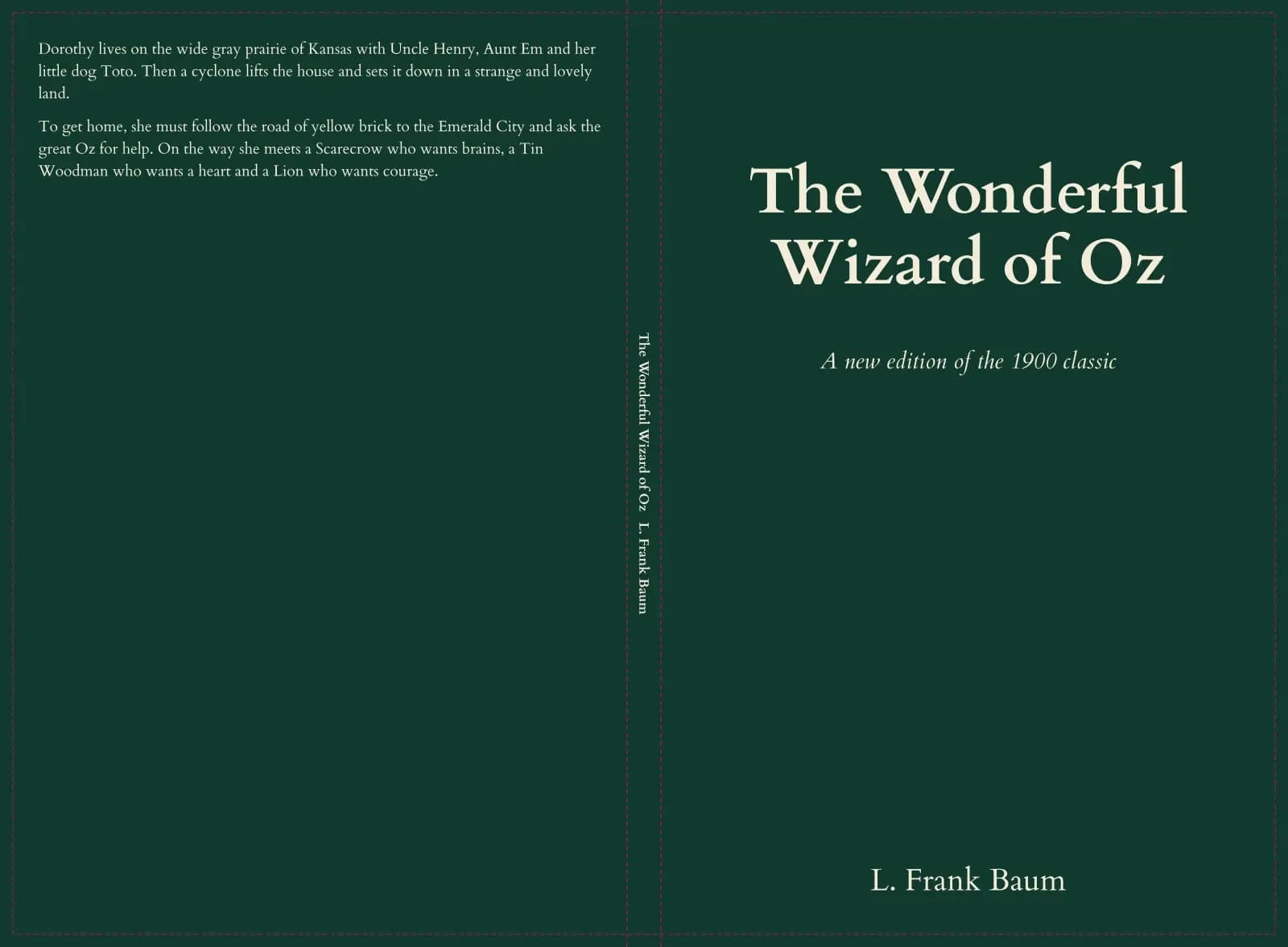
- Test input
- Title, author and back cover text for the 134 page Oz interior
- Output
- Full wrap cover PDF, 6 x 9, cream paper
- Full cover
- 12.585 x 9.25 in
- Pixels
- 3776 x 2775 px
- Spine
- 0.335 in
- Spine text
- Allowed
- PDF size
- 17 KB
- PDF size
- 17 KB
- Build time
- 208 ms
How we check files: a script compares every size with the KDP formula, and we open each PDF to check fonts, margins and the spine. More on the about page.
KDP cover creator FAQ
Is the KDP cover creator free?
You get free proof runs each day. A clean print file without the proof mark costs one credit.
Can I upload the PDF straight to KDP?
Yes. The PDF matches the KDP size for your settings. However, make sure the page count matches your final interior.
Which fonts can I use?
You can pick Cardo or Gentium Book. Both are open fonts that you can use on a commercial book.
Does it design the cover art for me?
No. It places your text and your image correctly. Instead, the art itself comes from you or your designer.